Three application examples are shown below:
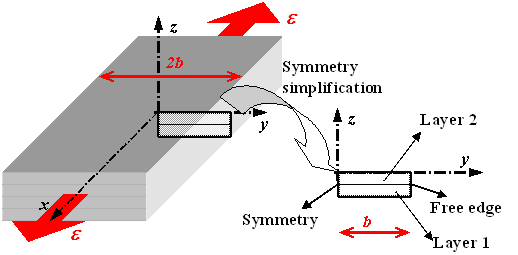
The free edge problem deals with a laminate subjected to a tensile load with free edges. In our case, it is a symmetrical multi-layered material (q1,...,qn)5 made up of N = 2n layers of orthotropic materials. Keeping in mind the symmetries, the problem can be reduced to the determination of the generalized fields in the lower right fourth section of Figure 1.
Figure 1. Free edge problem of a symmetrical multi-layered material simplified by symmetry.
Let us take the example of a (0,90)S made up of a carbon-epoxy UD composite material. The material properties in the orthotropy coordinates system are:
EL
= 150GPa, ET = 10GPa, EN =
10GPa
GLT = 5GPa, GLN = 5GPa, GTN
= 5GPa
nLT
= 0.3 y nLN
= 0.3
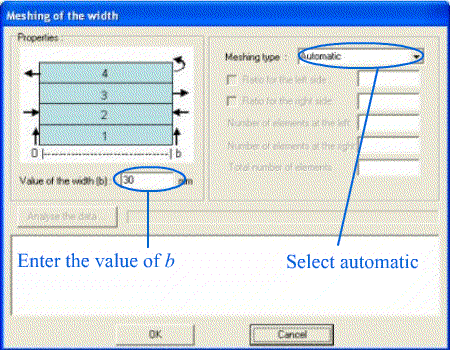
The layer thickness value is 1mm, the laminate width value is 10mm and the axial strain e = 1%.
These stages are to be followed for obtaining the generalized fields:
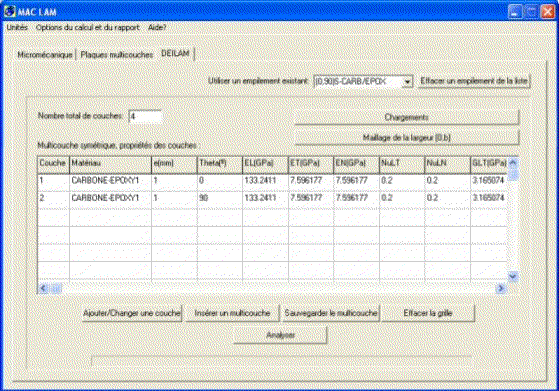
Figure 2. Definition of a carbon-epoxy (0,90)S laminate.
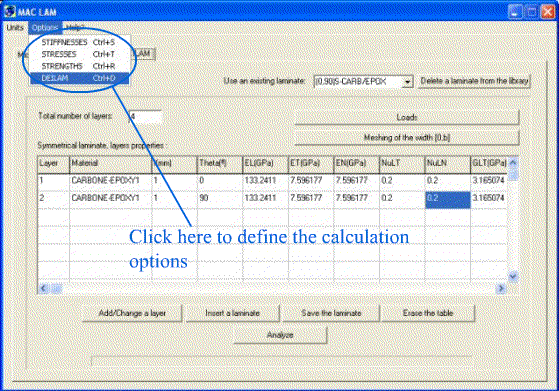
Figure 3. Where to click so that the calculation properties can be defined?
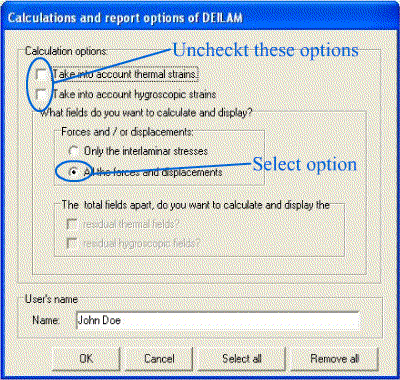
Figure 4. Definition of the calculation properties.
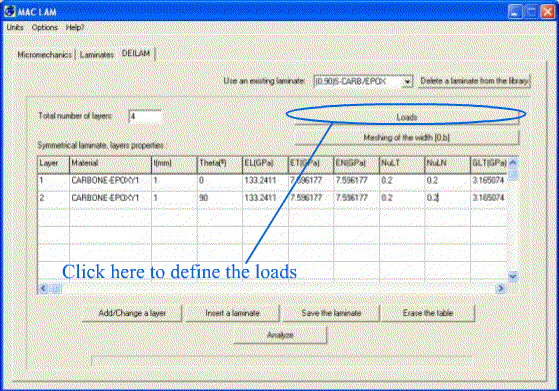
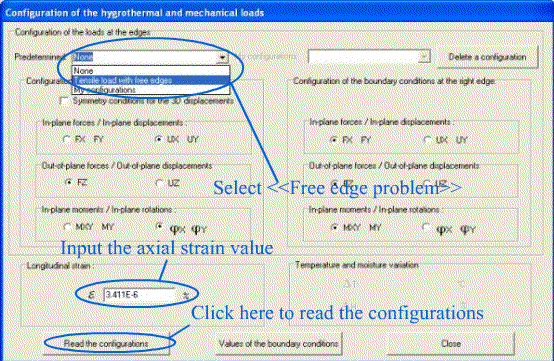
Figure 5. Where to click for defining the loads?
Figure 6. Load configuration.
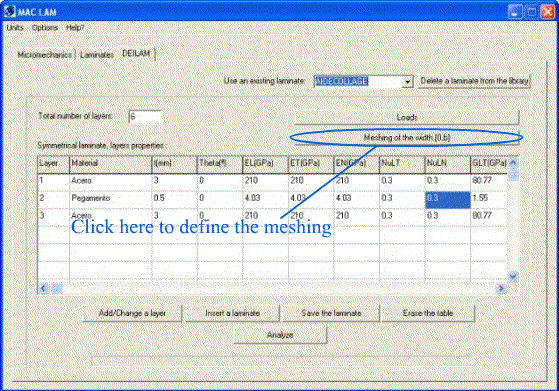
Figure 7. Where to click for the definition of the meshing?
Figure 8. Definition of the meshing.
Figure 9. Where to click for executing the calculations?
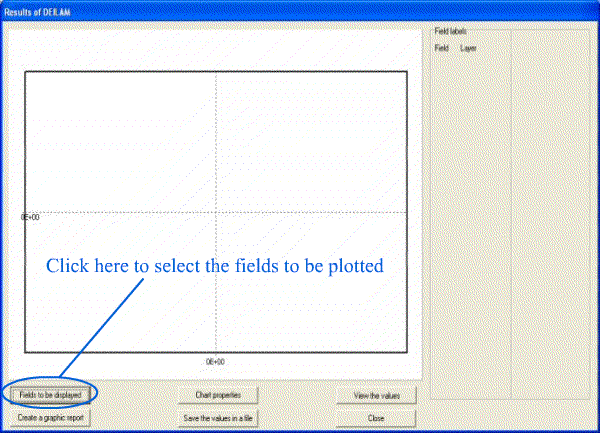
Figure 10. Where to click for selecting the fields to be plotted in the chart?
Figure 11. Configuration for plotting the graph.
Figure 12. Plotting the curves of the selected fields.
Analysis of stresses in an adhesive joint
Let us consider
the following adhesive joint:
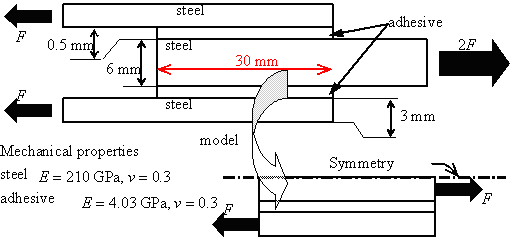
Figure 13. Adhesive joint.
We suppose that there is a generalized plane strain e = 0 state. The linear force F value is 100MPa.mm. Taking the symmetries into account, the problem may be reduced to the lower half of the assembly (see Figure 13).
In order to perform the stress analysis in this assembly with the help of DEILAM, follow these stages:
 (the
isotropic material shear modulus).
(the
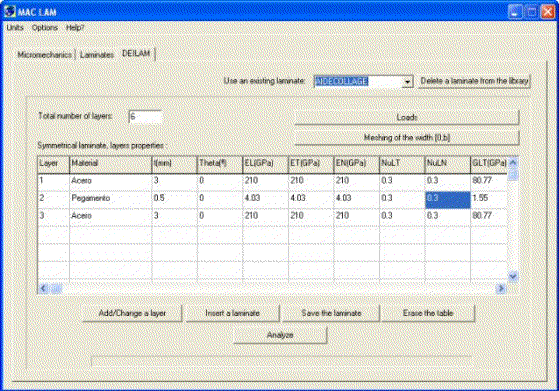
isotropic material shear modulus).Figure 14. Defining the properties of the laminate.
Figure 15. Definition of the calculation properties.
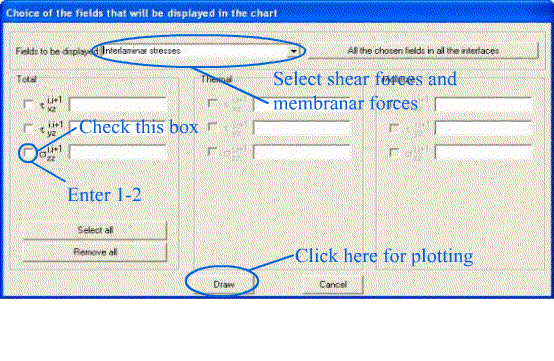
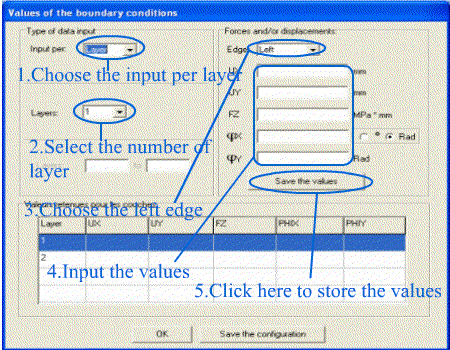
In the type of data input, select the option input per layer and select layer 1. In the options of forces and displacements, select the <<Left>> edge and write zeros everywhere except for FY = 100MPa.mm. Then click on the button <<Save the values>> (you will see the input values in the table below the window). For layers 2 and 3 at the left edge, repeat the same operation without forgetting to specify the layer number and to write zeros for all of the forces and moments.
For the right edge, the same instructions are followed except that the edge to be selected is the <<Right>> edge and you write zeros for all of the forces and moments in every layer except for the force FY = 100MPa.mm applied on layer 3.
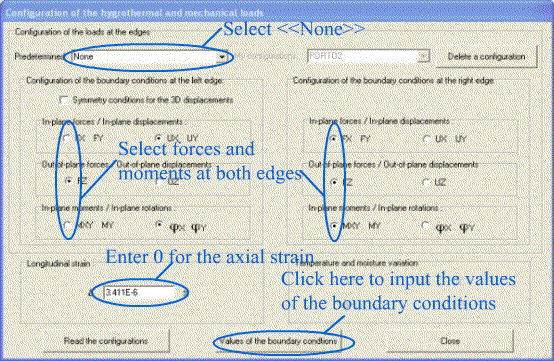
Finally, click on the button <<OK>> in order to validate the data and you will go to the window called <<Configuration of mechanical and hygrothermal load>>. You have to click on the button <<Read the configurations>>
Figure 16. First stage in the loads configuration.
Figure 17. Second stage in the loads configuration
 (normal
stresses) and put in the corresponding space 1-2 (in order to draw the stresses
in interfaces 1 and 2: interfaces steel/adhesive and adhesive/steel, respectively).
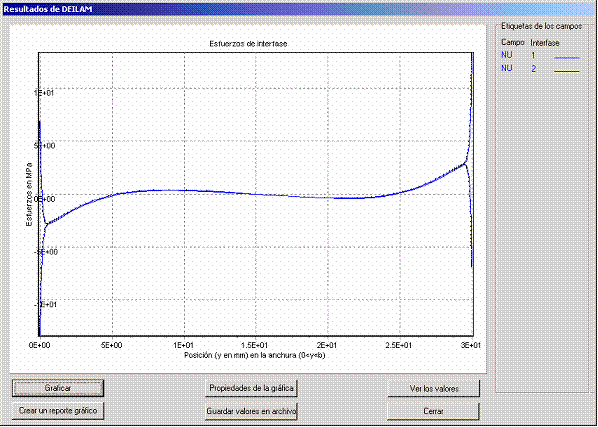
Then click on the button <<Draw>>. You will see a graphic similar
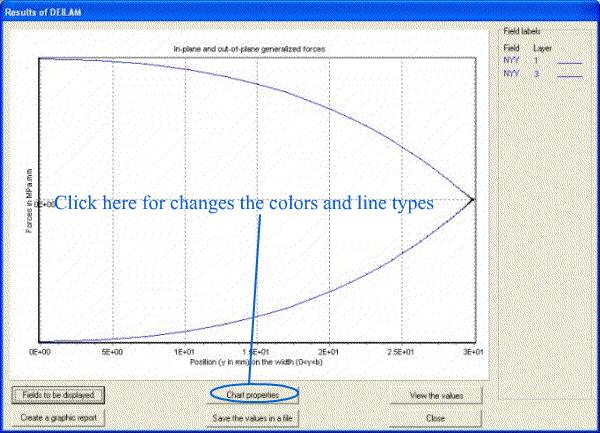
to the one in Figure 18: it is the normal stresses curve
at interfaces 1 and 2 vs. the position (y) on the interface. In order to distinguish
the two curves, you only have to click on the button <<Chart properties>>
and select the colors and types of lines you want for distinguishing the two
curves.
(normal
stresses) and put in the corresponding space 1-2 (in order to draw the stresses
in interfaces 1 and 2: interfaces steel/adhesive and adhesive/steel, respectively).
Then click on the button <<Draw>>. You will see a graphic similar
to the one in Figure 18: it is the normal stresses curve
at interfaces 1 and 2 vs. the position (y) on the interface. In order to distinguish
the two curves, you only have to click on the button <<Chart properties>>
and select the colors and types of lines you want for distinguishing the two
curves. Figure 18. First stage in the loads configuration.
Determining the residual thermal stresses and displacements
Let us consider a symmetrical multi-layered material (q1,...,qn)S made up of N = 2n layers of orthotropic materials. The multi-layered material is only subjected to a temperature variation DT. For this problem, there are no external forces applied to the laminate. So, the axial strain e should be such that the global force on the x direction:
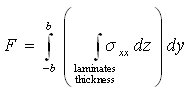
is zero.
In this MAC
LAM version, it is not possible to give the value of the force F. Despite
this, it is possible to calculate the axial strain e
that would give a null force F. In order to do this, you just have to
follow these stages:
R = F1 / e1
e = -F2 / R
After having determined the strain , the same stages are followed as in the case of the free edge problem, but this time with:
The results obtained by
means of this last calculation are the residual fields due to a single temperature
variation.
Important remarks
|
The shear stresses at the interfaces in DEILAM do not verify the 3D boundary condition: tyz = 0 In
order to verify this condition, we should enrich the M4-5N
model. Nevertheless, even if the 3D boundary condition is not verified,
the M4-5N makes a good description of the interlaminar shear
stress tyz
. The 3D finite elements near the edges and interfaces (between layers
of different materials) give results that depend on the meshing (there
are singularities). DEILAM gives finite values at the interfaces and
the results converge quickly. For certain materials, these finite
values proved to be capable of predicting delamination onset 7 . |
References
[1] A. Diaz Diaz, J.F. Caron, R.P. Carreira, “Software application for evaluating interfacial stresses in inelastic symmetrical laminates with free edges”, Journal of Composite Structures, 58, 195-208, 2002
[2] CARREIRA RP, CARON JF, DIAZ DIAZ A. “Model of multi-layered materials for interface stresses estimation and validation by finite element calculations”, Mechanics of Materials, 34, 217-230, 2002.
[3] CARON JF, CARREIRA RP, DIAZ DIAZ A. “Critère d'initiation de délaminage dans les stratifiés”. Comptes Rendus de l'Académie des Sciences, 327, 1291-1296, 1999
[4] CARON JF, DIAZ DIAZ A, CARREIRA RP, CHABOT A, EHRLACHER A. “Multi-particle modelling for the prediction of delamination in multi-layered materials”. Artículo aceptado para publicación en la revista Composite Science and Technology, 2005.
[5] DIAZ DIAZ A, CARON JF. “Prediction of the onset of mode III delamination in carbon-epoxy laminates”. Artículo aceptado para publicación en la revista Composite Structures, 2005.